
Calendly Google Sheets integration: three ways compared
Calendly's Google Sheets card opens Zapier. Three ways to connect Calendly to Google Sheets or export to Excel, and what each misses.
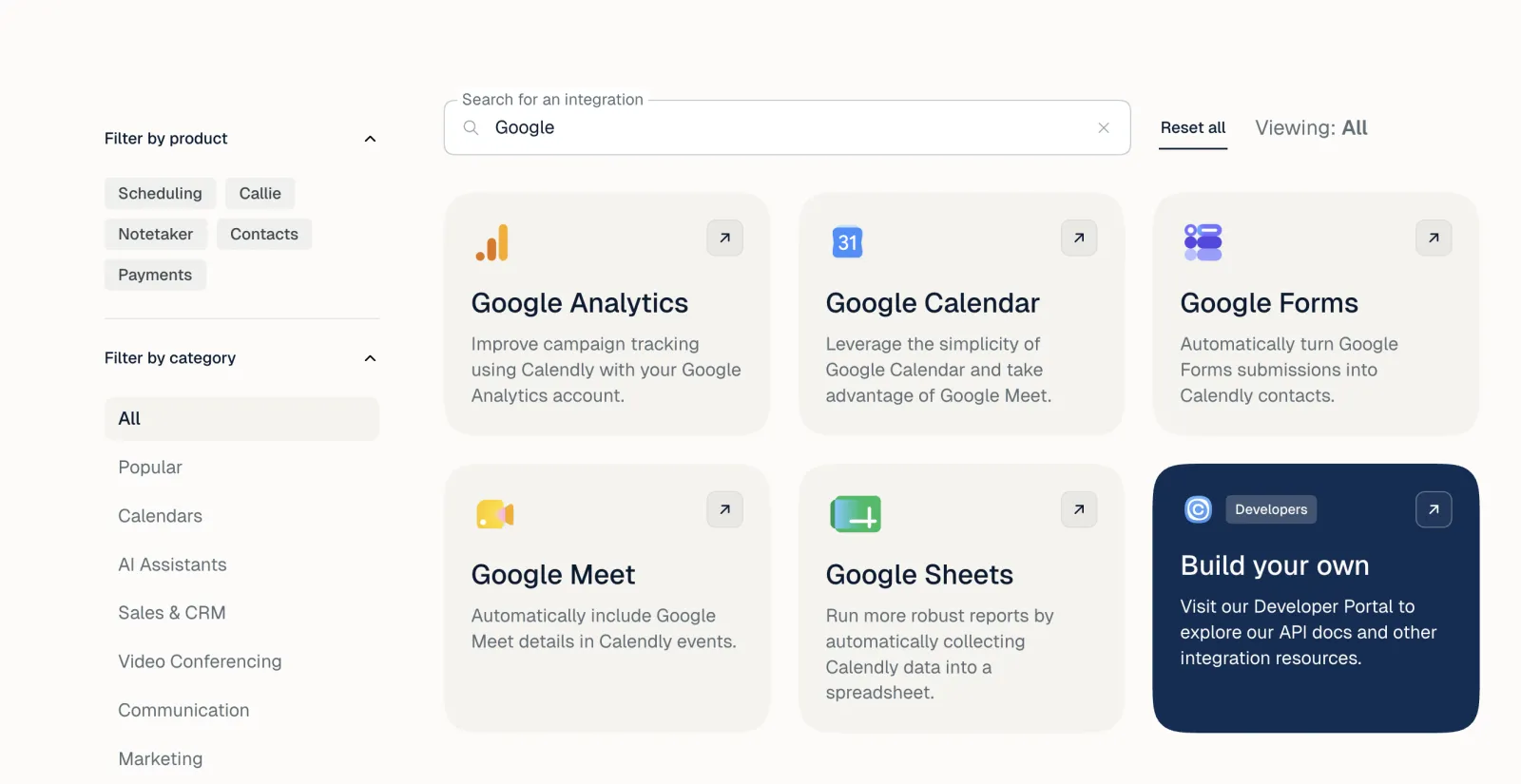
Calendly's integrations page has a Google Sheets card, but it opens Zapier rather than a built-in connection. So you have three realistic routes, and the difference between them only shows up later, when a booking gets cancelled or rescheduled.
| Route | Calendly plan | How fresh | What it misses |
|---|---|---|---|
| CSV export | Depends on your plan | As of the moment you export | Anything that changes afterwards |
| Zapier | Standard plan or higher | Seconds after a booking | Bookings made before you set it up, and later changes unless you build for them |
| Coupler.io | Any plan, per Calendly's directory | On a schedule you choose | Check its limits; I haven't tested it |
Exporting a CSV
Calendly can export your scheduled events as a CSV file. Which plans include the export can change, so if you don't see the button, Calendly's help center has the current rules.
- Open your scheduled events (your list of meetings) in Calendly.
- Pick Upcoming, Past or a date range, and filter by event type if you only need some of them.
- Click Export. Calendly either downloads the file or emails you a link to it.
To open the file in Google Sheets:
- Open a blank spreadsheet, or the one you want the data in.
- Choose File, then Import, then the Upload tab, and pick the CSV.
- For Import location, choose Insert new sheet(s) to keep each export on its own tab, or Replace current sheet to overwrite last time's copy.
- Leave Convert text to numbers, dates, and formulas ticked, so totals arrive as numbers you can add up and dates as real dates. Then click Import data.
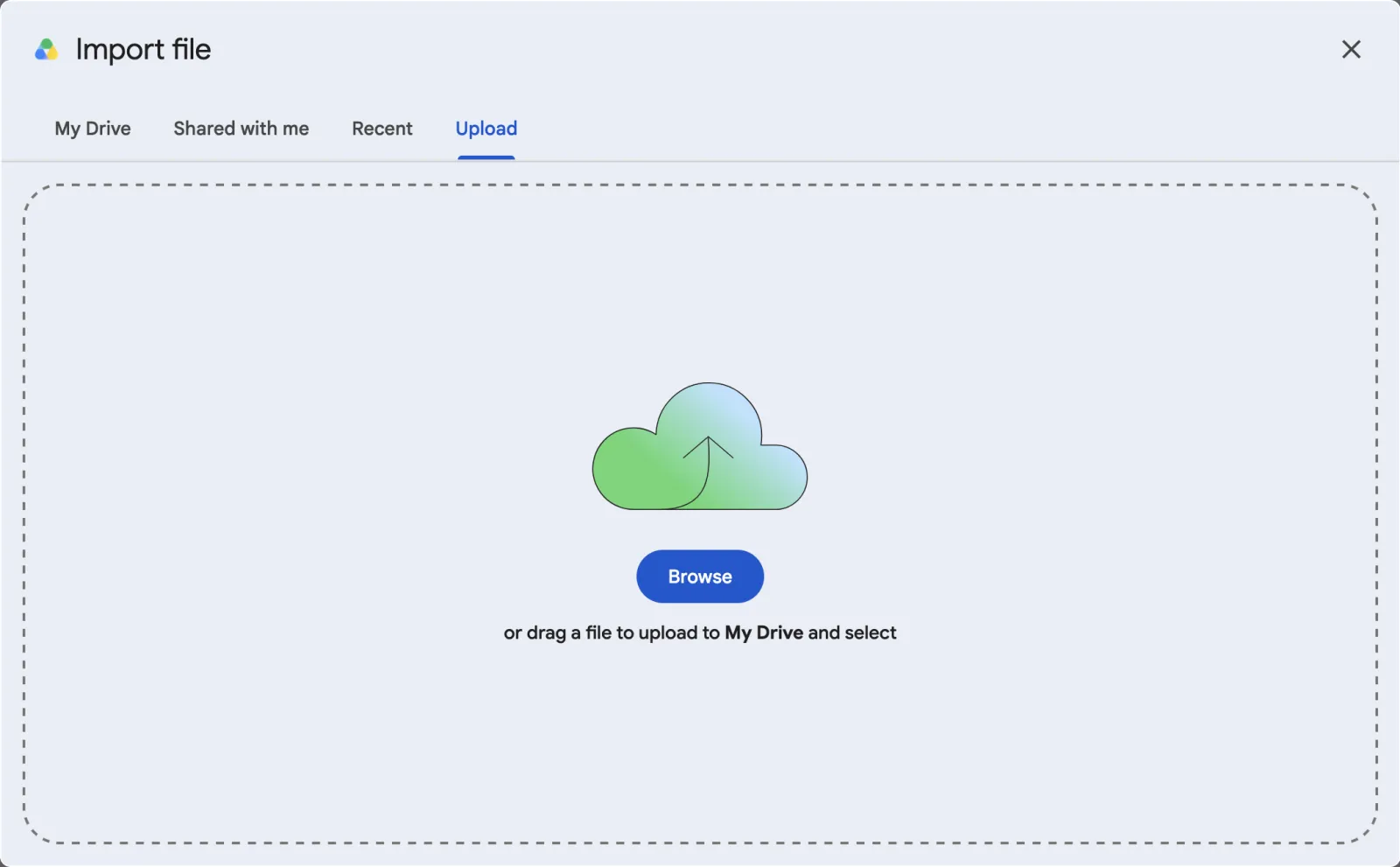
You get one row per booking with the invitee and event details. The same CSV opens in Excel, so this is also how you export Calendly data to Excel. If you've marked no-shows in Calendly, that status is in the file too.
The catch is that the file is a snapshot. A meeting cancelled after you export still looks booked in the sheet. If you track anything over time, import each export into a new tab and put the date in the tab name, so you always know how old the numbers are.
Contacts are separate: open Contacts, select the ones you want (or select all) and click Export. Calendly offers this on every plan.
Zapier: one row per new booking
Zapier's Calendly connection needs a Calendly Standard plan or higher. A free Zapier account is enough to try it, but each booking uses a Zapier task and the free plan has a monthly task limit.
- Make a sheet with a header row, for example Name, Email, Event type, Start time.
- In Zapier, start a Zap with the Calendly trigger Invitee Created.
- Add the Google Sheets action Create Spreadsheet Row and map each column to a Calendly field.
- Book a test meeting, check the row appears, then turn the Zap on.
Zapier only adds rows. It never goes back to change one, so a cancelled meeting stays in the sheet looking like it happened, and bookings from before you turned the Zap on never appear.
To handle cancellations, add a column that is unique to each booking, such as the invitee or event URI that Calendly passes to Zapier. Then build a second Zap on Invitee Canceled that uses Lookup Spreadsheet Row to find that booking and Update Spreadsheet Row to mark it cancelled. No-shows work the same way with the Invitee No Show Created trigger.
Coupler.io: scheduled refreshes
Calendly's integrations directory also lists Coupler.io, a data connector built and maintained by Coupler.io. It copies Calendly data into Google Sheets on a schedule and, according to that listing, works with every Calendly plan. A scheduled copy avoids the stale-snapshot problem of a manual export. I haven't tested it, so check its current limits and pricing on Coupler.io before relying on it.
Counting no-shows
Whatever route you use, the no-show numbers are only as good as what gets marked in Calendly. After a meeting's start time, open the meeting's details and click Mark no-show. It's available on all plans and can be undone.
Calendly's own Analytics dashboard, on paid plans, covers created, completed, rescheduled and cancelled events, but it doesn't list no-shows among its metrics. So the sheet is where a no-show rate gets calculated: no-shows divided by meetings that have already taken place. Leave future meetings out of the bottom of that fraction, or the rate looks better than it is.
Sources
Checked on the date above. Menus in Calendly, Jobber and Zapier change from time to time; if a button has moved, their help pages have the current steps.
SheetVan for Calendly, which will copy Calendly bookings into a Google Sheet every night, is coming soon. About SheetVan for Calendly
More guides
Questions or corrections? Email support@sheetvan.com.