
Jobber export: getting jobs, invoices and clients into Google Sheets
How to export Jobber data (jobs, invoices, clients) to CSV for Google Sheets or Excel, keep dates and totals intact, and why exports go stale.
Jobber doesn't list a Google Sheets integration, so data gets there one of two ways: a CSV export from Jobber's reports, or a Zapier automation that adds rows as records are created. Exports are the place to start. They're included with the reports on your plan, and they show you what the data looks like before you automate anything.
Invoices
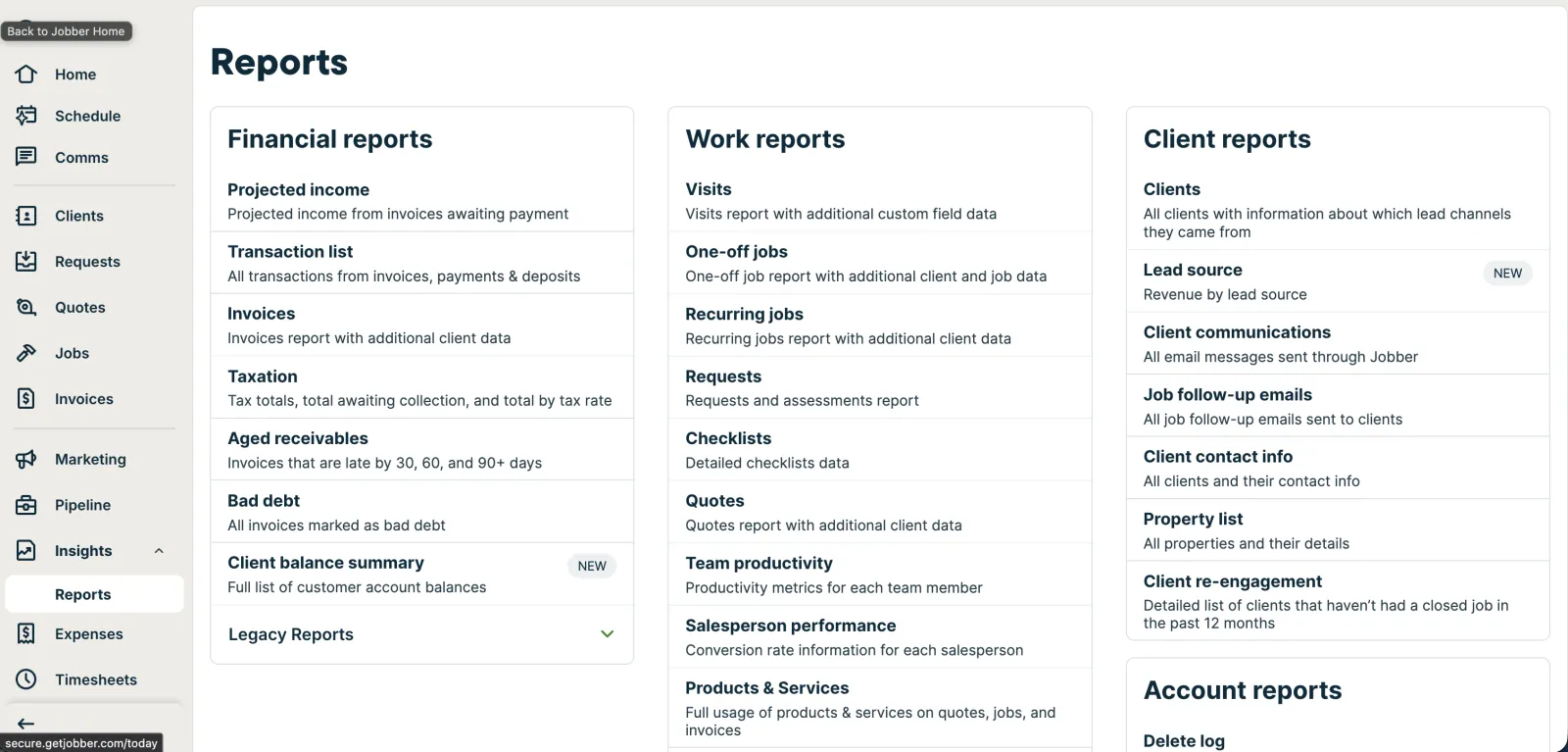
- In Jobber, go to Insights, then Reports, and under Financial reports open Invoices.
- Set the date range and any filters.
- Click Export to CSV and choose all columns or just the ones you need.
Jobber emails the file to the address you log in with rather than downloading it, so check that inbox.
Jobs
Jobs live under Work reports. Open One-off jobs (or Recurring jobs, or Visits) and use Export to CSV the same way. A few reports can't be exported at all, including Taxation and Waypoints.
Clients
Client exports work differently. On the Clients tab, click More Actions, then Export Clients, choose CSV and click Export. Client exporting is available on select Jobber plans and only to account admins. Jobber emails the file, and a long client list arrives split into files of 1,500 rows.
Opening the export in Google Sheets
The file is a plain CSV, so it opens in Excel too. These steps are for Google Sheets.
To open the file in Google Sheets:
- Open a blank spreadsheet, or the one you want the data in.
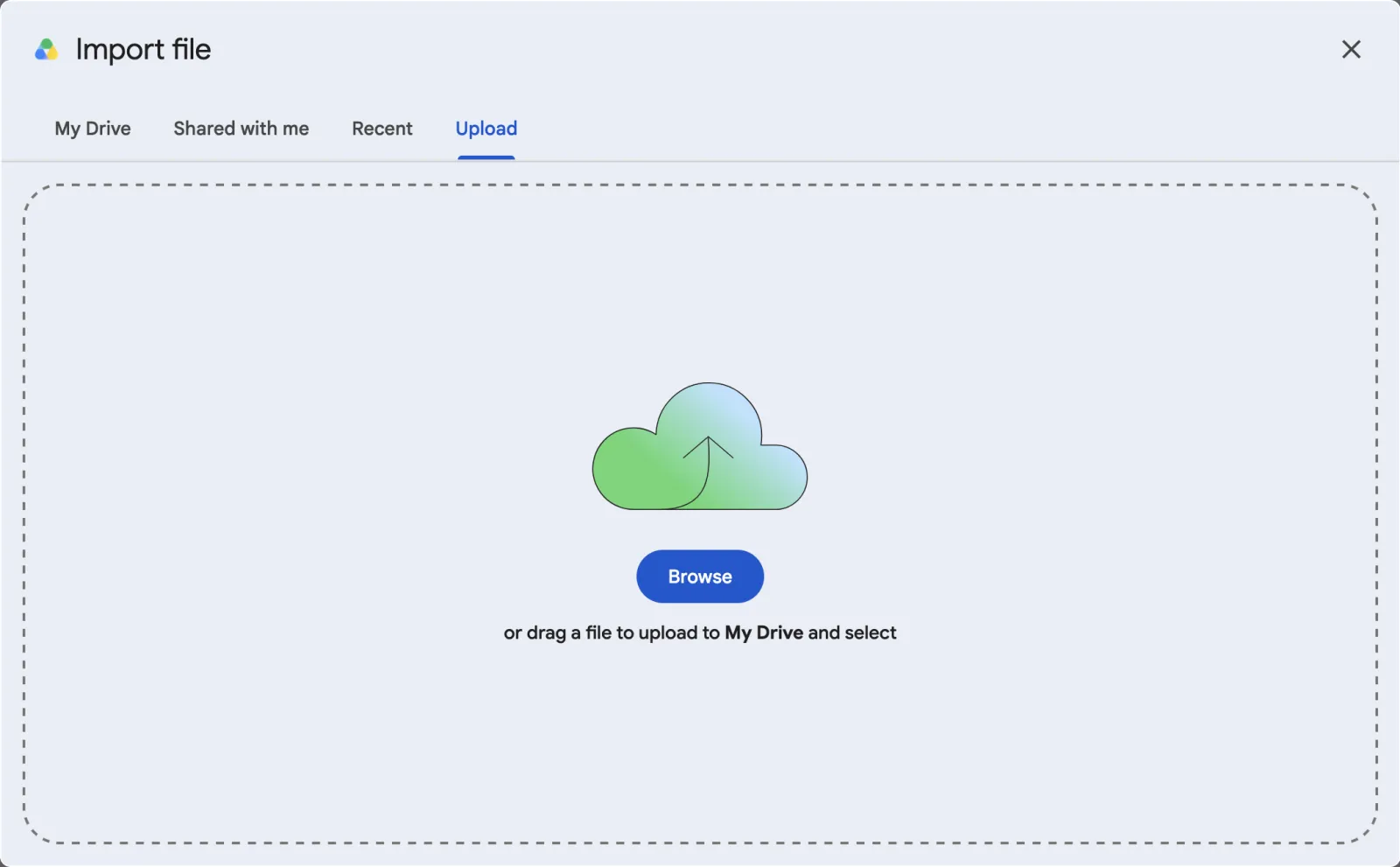
- Choose File, then Import, then the Upload tab, and pick the CSV.
- For Import location, choose Insert new sheet(s) to keep each export on its own tab, or Replace current sheet to overwrite last time's copy.
- Leave Convert text to numbers, dates, and formulas ticked, so totals arrive as numbers you can add up and dates as real dates. Then click Import data.
If dates arrive as text, or days and months come out swapped, your spreadsheet's locale doesn't match the format in the file. Set it under File, then Settings, then Locale, before importing again.
Why exports go stale
Each export is a snapshot. An invoice paid the next morning still shows a balance in your sheet until you export and import again.
Formulas survive a re-import if two things stay the same: the columns you export, and the tab you import into. Export the same columns every time and import with Replace current sheet, and anything pointing at that tab keeps working. Pick different columns and the formulas still point at the same column letters, which now hold different data. Nothing errors; the numbers are just wrong.
Adding new records with Zapier
According to Zapier, Jobber connects to Zapier on its Connect, Grow and Plus plans. Jobber's own help page only says it's on select plans. A Zap with the trigger New Invoice Created or New Job Created and the Google Sheets action Create Spreadsheet Row adds a row each time Jobber creates one.
That gives you a running list, but only of new records, and only as they looked when they were created. When an invoice is paid or a job is rescheduled, the row doesn't change. Keeping rows current needs more Zaps that find the existing row and update it, and every run counts against your Zapier task limit.
Sources
Checked on the date above. Menus in Calendly, Jobber and Zapier change from time to time; if a button has moved, their help pages have the current steps.
SheetVan copies Jobber clients, jobs, invoices, quotes and line items into a Google Sheet every night. How SheetVan works
More guides
Questions or corrections? Email support@sheetvan.com.